Fulltrace Studio
Studio is the window onto Fulltrace, built into the code editor as a VSCode extension. A sidebar shows the system's health at a glance. The main panel has two modes. Operate is for using Fulltrace: pick a job, see what it should cost, confirm the spend and watch it run through to the finished report. Build is for running the software factory: the queue, the slices in progress and what is waiting on a person.
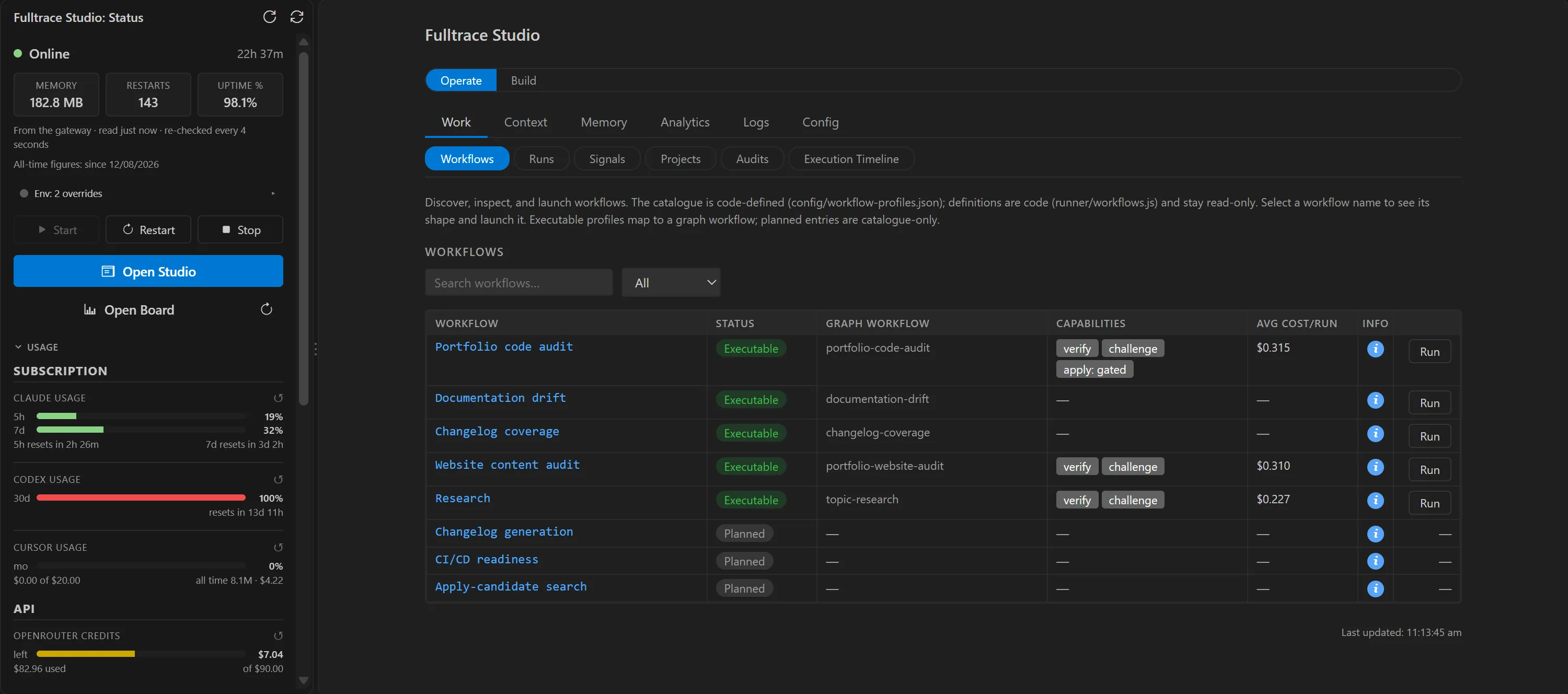
Operate: Run a Job and Watch It
Operate has eight tabs: Work, Chat, Schedule, Context, Memory, Analytics, Logs and Config. Work is where a job starts and ends. A person chooses the work, checks the estimate, confirms the spend and watches it run through to the result, without touching a terminal. Looking is always read-only. Anything that acts, such as launching a run or recording a decision on a finding, is a button a person confirms, and every one of those acts is recorded.
flowchart LR
    D["Pick
a workflow"] --> C["Set up
options and
projects"]
    C --> E["Estimate
cost from
past runs"]
    E --> L["Launch
A person confirms
the spend"]
    L --> O["Watch
live runs and
the step map"]
    O --> U["Read
results and
findings"]

    %% Blueprint tokens as literal hex (Mermaid cannot parse CSS vars or color-mix)
    classDef step fill:#62d99a1f,stroke:#62d99a,stroke-width:1.5px;
    classDef spend fill:#e0be621f,stroke:#e0be62,stroke-width:1.5px;

    class D,C,E,O,U step;
    class L spend;
A running job updates on screen as the local server reports each step. If that live feed drops, the screen checks every 4 seconds instead. An update that changes nothing never redraws the page or closes something that is open.
On the map of a run, each step shows whether its latest result was approved or rejected, as well as whether it ran. Finished runs show their cost, tokens and models, and a chart splits the spend by model for a workflow or for one run.
Clicking a step opens its detail: the findings report it produced, a clear pass or fail, the models and tokens each stage used, and a jump to the audit view with that project already selected.
A "Scope of this run" block sets how deep a code audit reads and how far back changes count. Each project in the picker says when it was last audited, or that it never has been. A run that covers four of nine projects says four of nine, before the launch and in the record afterwards.
Since 25 September a Research workflow answers a question from chosen files and folders. It splits the topic into at most four questions and writes one memo. Every claim quotes its source, and plain code checks each quote before the claim is kept. Since 3 October a tick box lets it search the web as well, and it is off unless ticked. A web quote is checked against the text the search returned, because Fulltrace never opens the page itself.
The Projects view draws one card per project with its code folders underneath, rebuilt on every read from the files in git and the run history. Readiness is shown as a counted checklist of what a project has. Nothing on the page can change a project. Changing one stays an edit to a file in git that a person reviews.
Enrol a project starts from a repository folder and a chosen AI tool. Fulltrace writes an interview prompt and hands it to that tool on a personal account, so Fulltrace spends nothing and writes nothing. What comes back is a proposal. The project is added by a reviewed edit, then a restart.
The Signals view counts what the run records already hold, with no model involved: how often results pass the checks, what was decided about findings, a week in numbers, and a run-over-run view that sorts a project's findings into new, persisting and resolved. Every number says what it is counted out of. It helps choose what to look at next and changes nothing.
Chat, Schedules and the Rules
The other Operate tabs cover quick questions, overnight jobs and the system's own settings.
Pick a model, type and get a reply without leaving the editor. Every reply says which model answered and what it cost, and a spending limit, US$1 a session by default, stops paid messages when it is reached. Chat uses a key of its own. A model on the local machine can answer at $0. How hard a model thinks can be set when the model supports it. No conversation is kept once the panel closes.
Since 25 September three kinds of reading can be attached to a message: the files about the person using it, passages found by a search of the Fulltrace docs, and a copy of the file or selection open in the editor. Nothing is attached unless it is ticked. Files named like credential files, such as .env and key files, are refused, and the picker offers no commands and no assistant memory. Chat still cannot change anything.
The Schedule tab lists every scheduled job and whether it is switched on. Arm and Disarm are buttons, and so are New job, Edit and Edit limits. Fulltrace checks every entry before it is saved, and editing a job switches it off until it is armed again, so the tab can never run something other than what was approved. No job is scheduled today.
Config > Governance lists the nineteen standing rules and how each one is enforced: a guard in running code, a test that fails, a checklist step, or words that nothing checks. It also counts how many open roadmap rows and standing decisions refer to each rule.
Config > Models holds the model catalogue, which model does which job, the models on the local machine, and the colour palette that Studio and the board share. Each Claude family has one colour in both places.
Ten panels show a figure read from somewhere else, such as what needs a person, what ran or what was spent. Each one says where the figure came from, when it was taken and how it stays current. An empty list gives a count and a reason instead of a blank.
Build: Run the Factory
Build is the mode for running the software factory. The factory works in slices, each one a small planned piece of work, and the chain is the unattended run that works through a queue of them. Build reads the roadmap, the queue and the runner's records straight off disk, so it shows the real state of the work. The rules the factory follows are on the factory page. This is the screen it is driven from. It has eight tabs.
Slices starts and stops the unattended runner, checks what it would take next, and sets the assistant and model it runs on, with a separate setting for low-risk rows. Stop asks which stop is meant: after the current slice, or now. A Runner item in the editor's status bar shows its state even with Studio closed. It turns red when the chain halts, and a halt raises one notification.
Since 1 October the runner's queue is changed from Studio: move a row up or down, remove it, or add one. One button lists every row the runner could take and adds the ones left ticked. Each change shows a before and after, and Save commits the queue file and nothing else.
Next up has two lists. Unattended is what the runner will take. Attended is what needs a person: a decision, a design step, or a risk above the runner's limit, and the order to take them in can be set. A slice parked for a ruling has a Rule on it button. It opens an assistant session that puts the question to a person, records the answer and returns the row to the queue.
After each deploy of the extension, Fulltrace writes a click pass: a page of checks that says where to go, what to do, what a pass looks like and what a failure looks like. A pass can be finished inside Studio. That seals the answers into the page, commits it and turns each failure into an entry in the UI fix register. A phone can read any pass page, without the answers.
An idea is a note with a kind, some text and screenshots. Plan makes one priced model call, which a person confirms first, and stores a draft. Promote hands the idea and its draft to an assistant to turn into a row. A new idea is checked against similar old ones, and once an idea is marked as converted it names the row it became.
Films lists this site's three demo films: Studio, the factory and the Data Dictionary. It accepts a film, rebuilds its captions from frames already shot, reshoots the factory film, and opens the storyboard editor. Studio itself never writes a storyboard and never commits one.
Build follows the project whose folder is open. Since 7 October a project list on the Build bar switches to any other project the factory knows, or to all of them, to read its slices, queue and ideas. Launching and writing work only for Fulltrace's own repo so far. Other projects are read-only here.
Approving a Fix, Without Trusting It
An audit finds problems and can offer to fix them. This is the only way a task run can change project code, so it is the part built with the most care. There are four steps, and a person presses each one.
- Prepare
A model proposes the fix, and the exact change shows as a preview.
- Rehearse
Studio applies the change, runs the project's own build, and undoes it.
- Approve
Only a change that passed can be approved. The approval covers that one change.
- Apply
The change is written, built again and logged.
So nobody is asked to approve a fix that fails straight away, and an approval is never a standing permission. Every check a change passes is listed under Changes Wait for Approval.
Around the Panel
One click away in the editor's side bar. It shows whether the local server is up and for how long, how much of the Claude and Codex allowance is used, the OpenRouter credit, counts of what the assistants have done, and which build of the extension is installed. Its buttons start, stop and restart the server, open Studio and open the board.
Open Board starts the board if it is not running and opens it in the browser. The board and its stats page show the factory at work, and the factory page walks through both.
The user guide is one file that the board serves as a page per section, grouped by tab. Most tab pages show a dated screenshot of the tab they describe.
Config > Setup walks through connecting the local server, Claude, Codex, Cursor and OpenRouter a step at a time, and shows which steps are done.
How It Is Built
One poller asks the local server for its status every 4 seconds and scans the disk for commands, agents, memory files and hooks. The sidebar and the panel both read from that one poller, so they cannot disagree.
The extension runs on the VSCode extension API and Node's own built-ins (http, child_process, fs). No npm packages ship with it and there is no bundler. TypeScript compiles it, and it installs as a VSIX file.
The main panel loads its script and its styles only from the extension's own files. Inline script and inline styles are blocked. Until 29 September the script was one 16,000-line block of text, stamped with a one-off password on every load. It is now an ordinary file.
Most colours come from the editor's theme, so the panel matches whichever theme is in use. Status colours, assistant badges and model colours are fixed, and the model colours can be changed from Config > Models.
The panel opens on demand from the sidebar or the command palette, in the mode and tab last used, remembered per project folder. Server status comes from the poller the sidebar already runs, and each tab asks the local server for its own data when it is opened.
status_poller_scanwhat one poller reads, every 4s
studio_settingsevery agentOsDashboard.* key
Seventeen settings live under agentOsDashboard.* in VSCode settings. Four of them (host, port, statusPath and ollamaUrl) can only be set per machine, so a project's own settings file cannot redirect them, and the server address is checked to be this machine before it is used.
The Start, Stop and Restart buttons drive pm2. The process name is checked against a strict pattern before any command runs, so a configured name cannot turn into a different command. Restart goes through a script that stops the server, waits for its port to free and starts it again, and refuses if the port never frees.